Capability overview
How can I use visual image comparison in Diff Anything?
Inspect PNG, JPEG, GIF, WebP, BMP, TIFF, Photoshop (PSD and PSB), SVG, HEIC, AVIF, camera RAW, and other images with thresholds, overlay, swipe, blink, heatmap, changed-pixel masks, true-pixel zoom, dimension alignment, and detailed error metrics. Draw ignore regions over a clock or other area that always changes, move the updated image by an offset or let Align automatically find the shift, and compare both images' metadata side by side.
HEIC, AVIF, and camera RAW files are decoded by the operating system. On Windows, HEIC needs the HEIF Image Extensions and HEVC Video Extensions, AVIF the AV1 Video Extension, and RAW the Raw Image Extension from the Microsoft Store. Photoshop documents are compared by their composite image, which a file saved without Maximize Compatibility does not have.
SVG files are compared as XML until you choose Compare rendered; files an SVG links to are never loaded. Animated GIF, APNG, and WebP images are compared one chosen frame at a time. Metadata differences, such as the camera model or colour profile, are listed without counting as changes unless you choose to count them.
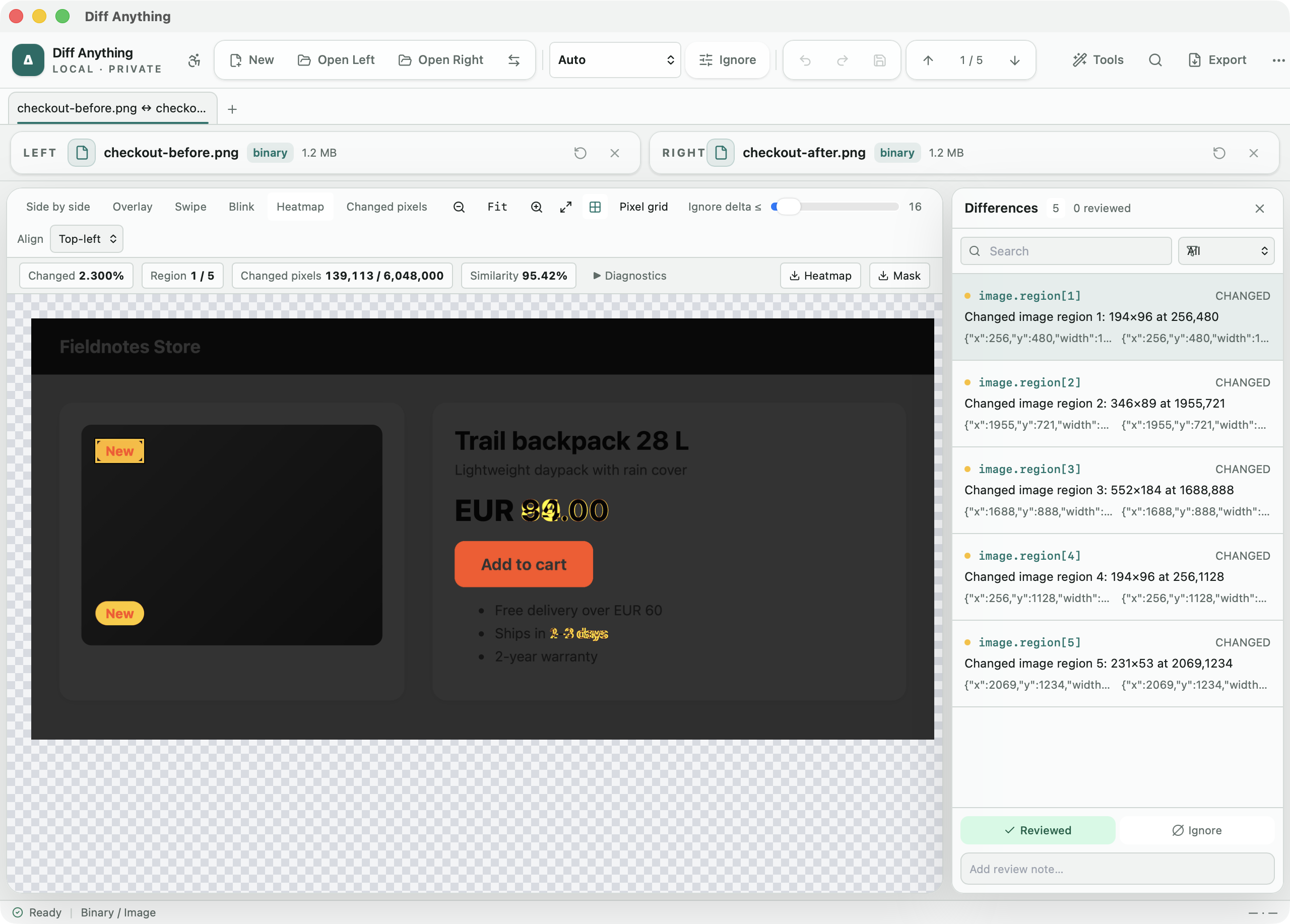
Views
Choosing a view for the kind of change you are looking for
Different changes are easier to spot in different views. Switch between them from the image toolbar without reloading the files:
Every view except Side by side needs two images that can be decoded. If one side cannot be read as an image, the app says so and keeps the file details visible.
- Side by side keeps both images whole for context.
- Overlay places the right image over the left, with a Right opacity slider, which shows small shifts in position.
- Swipe reveals the right image across the left with a Reveal right slider, useful for checking where an edge or colour changes.
- Blink alternates the two images. It pauses when the system asks for reduced motion.
- Heatmap colours each pixel by how much it changed.
- Changed pixels shows only the pixels above the threshold, as a mask.
Threshold and alignment
Separating real changes from compression noise
Re-saving a JPEG or exporting from a different tool changes many pixels by one or two colour levels. The Ignore delta ≤ slider, from 0 to 255, ignores per-channel changes at or below the chosen value, so those tiny shifts drop out and the real edit remains.
When the images have different sizes, choose Align Top-left or Center. Both images are placed on a shared canvas, the area that exists on only one side counts as changed, and a badge shows the two sizes and the canvas used. Transparency is taken into account: two fully transparent pixels are equal even if their hidden colour values differ. Photo orientation from the camera is applied before comparing.
The threshold and alignment are saved with a Pro profile, so a screenshot check you repeat for every release uses the same settings each time.
Regions, offset, metadata
Leave out what always changes, and line up shifted images
Screenshots often differ only in a clock, a date, or a cursor. Turn on Draw region and drag across either image, or type a region's coordinates under Ignore regions; pixels inside a region count in no measurement and are hatched in the heatmap and mask. A changed region selected in the Differences pane can be ignored with one button.
When the updated image is shifted by a few pixels, set its offset, or move it with the arrow keys while the image has focus, and the comparison runs with the shift applied. Align automatically searches for the whole-pixel shift that matches best.
Metadata shows both images' format, dimensions, bit depth, colour profile, orientation, frames, EXIF camera details and GPS coordinates, and PNG text side by side. Differences there are listed without counting as changes, unless you turn on Count metadata differences.
Measurements
Numbers and files you can take away
The toolbar shows the changed share of the image, changed pixels out of the total, and similarity. Diagnostics adds mean error, RMS error, the largest single-channel change, and the bounds of the changed area.
Changed pixels are grouped into regions. Each region is listed in the Differences pane with its size and position, and F7 and F8 move between them while a box marks the current one. Mark regions Reviewed or add notes like any other difference. The Heatmap and Mask buttons save those views as PNG files. Zoom goes from 25% to 800%, Pixel grid keeps pixels sharp at high zoom, and the checkerboard button shows where an image is transparent.
Formats and limits
Which images get a pixel comparison
PNG, JPEG, GIF, WebP, BMP, TIFF, ICO, TGA, QOI, PNM, OpenEXR, and Radiance HDR are decoded by Diff Anything itself on Mac and Windows. Photoshop documents (PSD and PSB) are compared by their composite image, which a file saved without Maximize Compatibility does not have; such a file is compared by its bytes, with a message that says how to save it again. HEIC, AVIF, and camera RAW files are decoded by the operating system; on Windows, HEIC needs the HEIF Image Extensions and HEVC Video Extensions, AVIF the AV1 Video Extension, and RAW the Raw Image Extension from the Microsoft Store.
SVG files are compared as XML until you choose Compare rendered in the bar above them; files the drawing links to are never loaded. Animated GIF, APNG, and WebP images are compared one frame at a time, the same frame on both sides, chosen in the Frame field. Pixel comparison works up to 16 megapixels and 16,384 pixels on a side.
Images open in Binary / Image mode. The free plan shows the complete result for files up to 5 MB per side, within 10 new comparison sessions per day; Pro removes those limits.
In the workflow
How to use it
Open both images
Choose the approved screenshot or asset and the new export. They open in Binary / Image mode.
Find the change
Start with Heatmap to see where pixels changed, then use Swipe or Overlay to see how.
Remove noise
Raise Ignore delta ≤ until compression artefacts disappear, draw ignore regions over areas that always change, and set Align or an offset if the images do not line up.
Review each region
Step through the regions, mark them Reviewed, and save the heatmap or mask if someone else needs to see it.
Useful in practice
When to use it
Related manual
Compare folders, spreadsheets, documents, and images
Review cross-format spreadsheet values, release trees, documents, and visual assets with purpose-built navigation, safety checks, and rollback.
Read the guideDirect answers
Questions about visual image comparison.
How do I stop JPEG compression from showing as a change?
Raise the Ignore delta ≤ slider. Per-channel changes at or below that value are ignored.
What happens when the two images have different dimensions?
Both are placed on one canvas, aligned top-left or centred. The area that exists on only one side counts as changed.
Can I save the heatmap as an image?
Yes. The Heatmap and Mask buttons save the current heatmap and changed-pixel mask as PNG files.
Can I compare SVG files visually?
Yes. SVG files open in XML mode and are compared as markup; choose Compare rendered in the bar above them to compare how they look. Files the drawing links to are never loaded.
How do I stop a clock in a screenshot from counting as a change?
Draw an ignore region over it. Pixels inside an ignore region count in no measurement, and the region is kept with the tab and with a Pro profile.
Free & Pro: what’s included
Available on the Mac App Store and Microsoft Store. Free desktop use lets you try every comparison engine for files up to 5 MiB per side and 10 new comparison sessions per local day; collection previews show the first 100 items, binary comparisons the first 100 byte differences, and PDF previews the first 3 pages. Plain text, JSON, and Jupyter notebook comparison are complete, and opening files from Finder or File Explorer, diffanything:// links, and AppleScript are free. The free CLI supports text, JSON, and notebooks, and the command-line helper that brings the CLI to the Mac App Store version is a free download that uses the Pro purchase made in the app. A one-time Pro purchase removes the preview and session limits and unlocks larger sources within technical limits, saved profiles and history, saving folder snapshots, report export and printing, JSON Patch export, applying patches, three-way merge and conflict resolution, the Git merge driver and merge tool, folder synchronization, batch manifests, every CLI mode, and, on Windows, trusted preprocessors.