Capability overview
How can I use text editing and merge in Diff Anything?
Use side-by-side, inline, or top-and-bottom text views, edit either side, and apply selected changes. Reopen with encoding reads a file again in any of 45 encodings, including the EBCDIC code pages IBM037, IBM500, IBM1047, and IBM1140, and Save with encoding converts its encoding, byte-order mark, and line endings. Pro adds a three-way workspace for Base, Ours, and Theirs with focused Ours-against-Base and Theirs-against-Base diffs, conflict navigation, bulk Ours or Theirs choices, reset, automatic merging of independent lines and of edits to separate words of the same line, ordered conflict choices, and an editable merged result.
Spot meaningful code changes with Smart Diff across 117 editor languages. Switch to Line Diff whenever you want an exact line-by-line review. Both views keep syntax highlighting and editing close at hand. Ignore rules leave timestamps, IDs, comments, or fixed columns out of a text comparison, and Align these lines pairs two lines by hand where the automatic match is not the one you want.
Editing both sides
Fix either file while you look at the differences
Turn on Editable and type directly into the left or right side. The comparison updates as you edit, so you can correct a typo, reword a paragraph, or remove a debug line and immediately see what still differs.
To take a change from the other file, select it and use Right → left or Left → right. Undo and Redo (⌘Z and ⌘⇧Z on Mac) step through source edits, and a source you have changed is labelled Modified. Copy left and Copy right put a whole side on the clipboard, which is how you take pasted text out of the app.
Inline shows both versions in one column, with removed and added lines under each other, which suits a narrow window, and top-and-bottom shows the original above the updated version in two editors that scroll together. Go to line… (Command-L or Control-L) moves to a line number on either side.
Saving
Saving is a separate step with safety checks
Save modified files (⌘S) writes every changed file in the current tab. By default the app asks before overwriting; the Confirm before overwriting files setting controls that prompt. The file keeps its original text encoding, and if a character cannot be stored in that encoding the save stops with an explanation.
A file is read in the encoding detected for it: UTF-8, UTF-16, or UTF-32 by its byte-order mark or its pattern of zero bytes, and otherwise the legacy encoding its content suggests. When the guess is wrong, Reopen with encoding reads it again in any of 45 encodings, including Shift_JIS, Windows-1252, and the EBCDIC code pages IBM037, IBM500, IBM1047, and IBM1140, and says how many bytes did not decode. Save with encoding converts a file's encoding, byte-order mark, and line endings (LF, CRLF, or CR), and lists any characters the new encoding cannot hold instead of dropping them. Both are free.
If another program changed the file on disk after you opened it, the save is refused, so your edits never silently replace someone else's. Closing a tab or quitting with unsaved edits asks for confirmation first.
Three-way merge
Combining two edited copies of the same file (Pro)
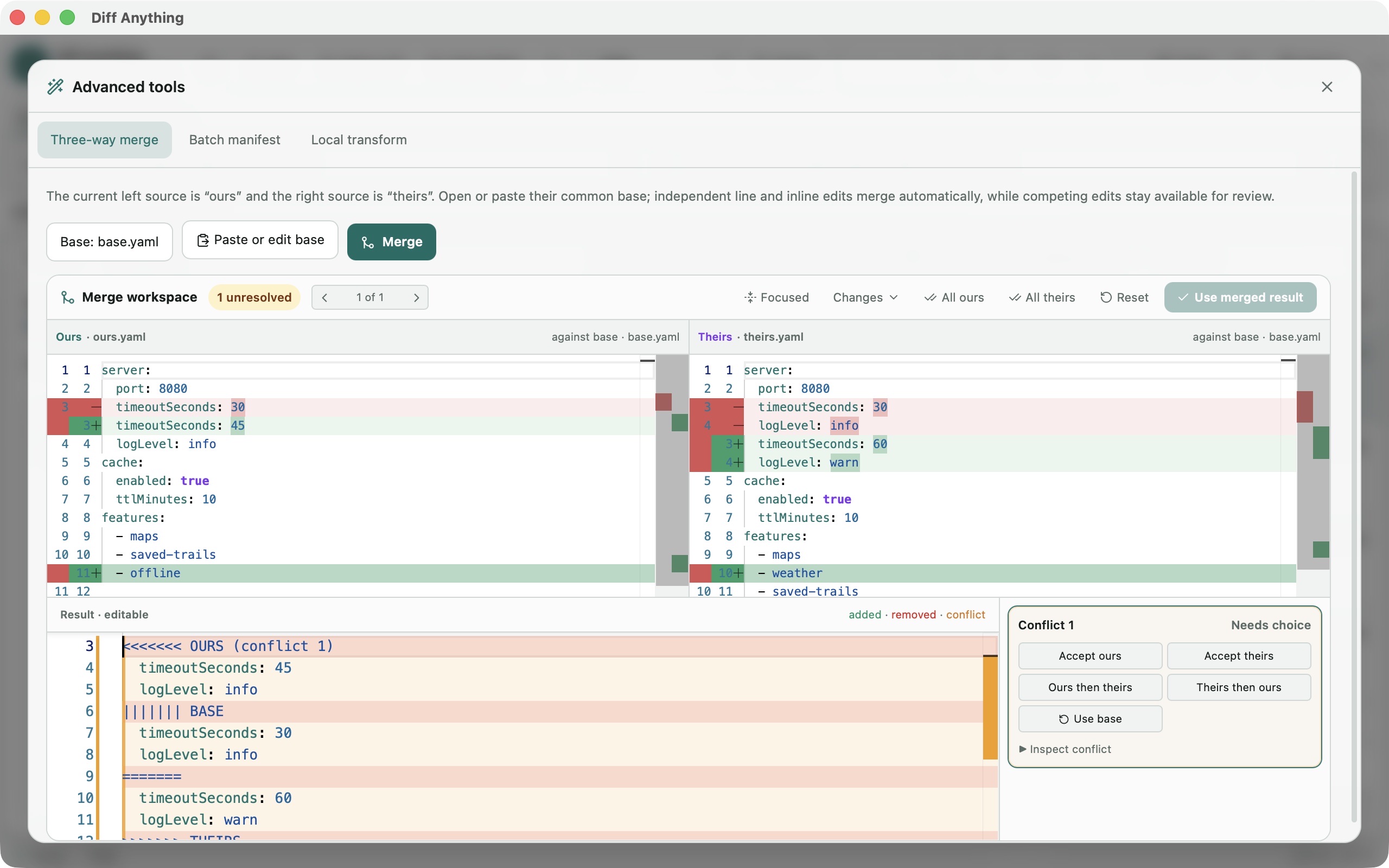
Put your version on the left and the other version on the right, then open Tools and choose Three-way merge. The left becomes Ours and the right becomes Theirs. Use Select merge base… to open the common original, or Paste or edit base, and click Merge.
Edits that do not overlap are combined automatically, including two separate edits on the same line. Overlapping edits become conflicts. Move between them with the conflict arrows and resolve each one with Accept ours, Accept theirs, Ours then theirs, Theirs then ours, or Use base. All ours and All theirs resolve every remaining conflict at once, and Reset returns to the automatic result.
The Changes panel shows Ours against Base and Theirs against Base, and Focused hides unchanged lines. The result pane stays editable and uses the same syntax highlighting as the left file. When the status reads Ready to use, Replace right with merged result replaces the right side, and you save it like any other edit.
Merge scope
What the merge works on
Text merges by lines. When both sides edited the same line, their edits are combined only if they changed separate words; otherwise the line is a conflict, so the merge never invents a value. JSON, YAML, TOML, and INI files are merged by their data instead, value by value, with conflicts only at values both sides changed differently and your side's comments and formatting kept; Merge by data switches back to the line merge. Folders, images, and PDFs cannot be merged. Editing, copying changes, and saving are free; the merge workspace is part of Pro.
A file that already contains conflict markers shows how many conflicts it has. Resolve, which needs Pro, opens those conflicts in the merge workspace, and Save resolved file writes the result back in the file's own encoding and line endings. Git can also start Diff Anything as its merge tool, the Microsoft Store version on Windows directly and the Mac App Store version through the free command-line helper; the three-way merge and Git merge tool page explains the setup.
In the workflow
How to use it
Place the versions
Open your copy on the left and the other edited copy on the right.
Choose the base
Open Tools, pick Three-way merge, then select or paste the common original and click Merge.
Resolve each conflict
Step through the conflicts, choose a resolution, and adjust the result by hand where needed.
Use and save
Click Replace right with merged result once nothing is unresolved, then save the right-hand file.
Useful in practice
When to use it
Related manual
Choose the right comparison mode
Choose sources, understand automatic detection, and select the engine that answers the question you are actually asking.
Read the guideDirect answers
Questions about text editing and merge.
Can I edit a file inside the comparison?
Yes. Turn on Editable in the text toolbar and type into either side. Save modified files writes the change to disk.
What if the file was changed by another program before I saved?
The save is refused and your edits stay in the app. Reopen the file to see the new version before saving again.
Why is Replace right with merged result greyed out?
At least one conflict is still unresolved or a conflict marker is still in the result. Resolve or delete it and the button becomes available.
Is three-way merge included in the free plan?
No. Two-way comparison, editing, and saving are free, and so is seeing how many conflicts a file has. Three-way merge, resolving conflicts, and merging from Git need Pro.
A file opened with garbled characters. What can I do?
Its encoding was guessed wrong. Use Reopen with encoding and choose the right one, such as Windows-1252 or Shift_JIS; the app says how many bytes did not decode in the encoding you chose.
Free & Pro: what’s included
Available on the Mac App Store and Microsoft Store. Free desktop use lets you try every comparison engine for files up to 5 MiB per side and 10 new comparison sessions per local day; collection previews show the first 100 items, binary comparisons the first 100 byte differences, and PDF previews the first 3 pages. Plain text, JSON, and Jupyter notebook comparison are complete, and opening files from Finder or File Explorer, diffanything:// links, and AppleScript are free. The free CLI supports text, JSON, and notebooks, and the command-line helper that brings the CLI to the Mac App Store version is a free download that uses the Pro purchase made in the app. A one-time Pro purchase removes the preview and session limits and unlocks larger sources within technical limits, saved profiles and history, saving folder snapshots, report export and printing, JSON Patch export, applying patches, three-way merge and conflict resolution, the Git merge driver and merge tool, folder synchronization, batch manifests, every CLI mode, and, on Windows, trusted preprocessors.