Start with the review question
Choose a mode based on what must remain meaningful. Plain text is correct when formatting and exact lines matter; a semantic mode is better when keys, values, rows, types, or compatibility matter more than source layout.
The same two files can support different questions. A JSON text diff explains formatting changes, while semantic JSON explains changed paths and typed values. Spreadsheet comparison answers whether the rows and stored cell values of two workbooks match across workbook formats, and compares formulas between two workbooks of the same format; it does not compare presentation.
- Use text for source formatting and prose.
- Use structured modes for data meaning, also between two data formats such as JSON and TOML.
- Use spreadsheet comparison for rows and stored values across Excel, OpenDocument, and Apple Numbers workbooks.
- Use notebook comparison for Jupyter notebooks and SQLite comparison for databases.
- Use folder mode for directory trees and archive mode for container contents.
- Use image mode for rendered visual output.
Choose and load sources
Open files or folders, paste content, or, with Pro, load a saved profile. Confirm left and right orientation before applying any change or copy action.
Source loading reports unreadable input rather than silently comparing empty content. Pasted input has no filename, so an explicit mode may be clearer.
How automatic mode resolves
Auto examines both detected formats. Compatible spreadsheet formats can share the spreadsheet comparison even when their extensions differ, matching structured formats take priority, two different data formats (JSON, YAML, TOML, INI, and property lists) are compared by their data, two folders resolve to folder mode, an archive beside a folder is compared as the folder it holds, and other compatible content falls back to text.
Choose an explicit mode when an extension is misleading, content is pasted, or the review needs a specific semantic interpretation.
Read text and structured results
Text results retain normalized sources, line changes, navigation targets, totals, and the ignore settings needed to reproduce the comparison.
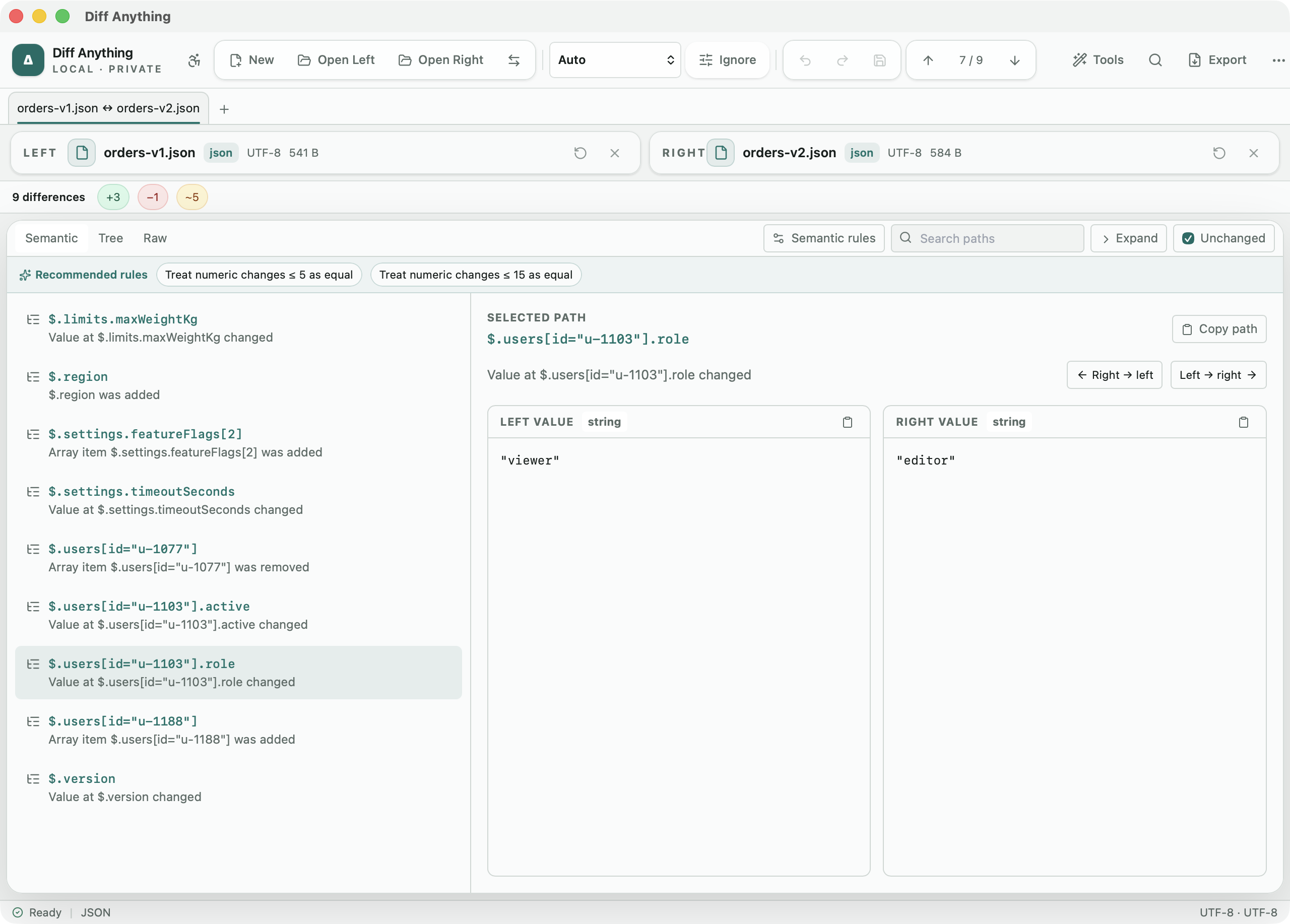
Structured results expose a stable path, change type, typed values, severity, and human-readable explanation for each difference.
- Use keyed arrays when identity comes from a field.
- Use unordered arrays when member order has no meaning.
- Apply numeric tolerance only to paths where small variation is expected.
Compare spreadsheets across formats
Open any two XLS/XLA, XLSX/XLSM/XLAM, XLSB, ODS, or Apple Numbers workbooks. The two extensions do not need to match: sheets are paired by name and compared row by row. Rows are matched by their content, so an inserted or deleted row is one added or removed row and the rows after it still match, and a changed row names the cells that differ on each side. A CSV or TSV file opened beside a workbook is compared by cell values with one sheet of it, the first by default; Compare with sheet picks another, and a note names the sheet used.
When a sheet has an ID column, choose it under Match rows by, or type several under Key columns: rows with the same key are then compared wherever they are, and a key that appears twice is a warning. The table view shows matched rows side by side with their row number in each workbook.
- Rows and stored cell values are compared.
- Formulas are compared between two workbooks of the same format, such as two XLSX files.
- Formatting, charts, macros, and workbook layout are not compared.
- Use the original spreadsheet applications when those excluded properties matter.
Choose Smart Diff or Line Diff for code
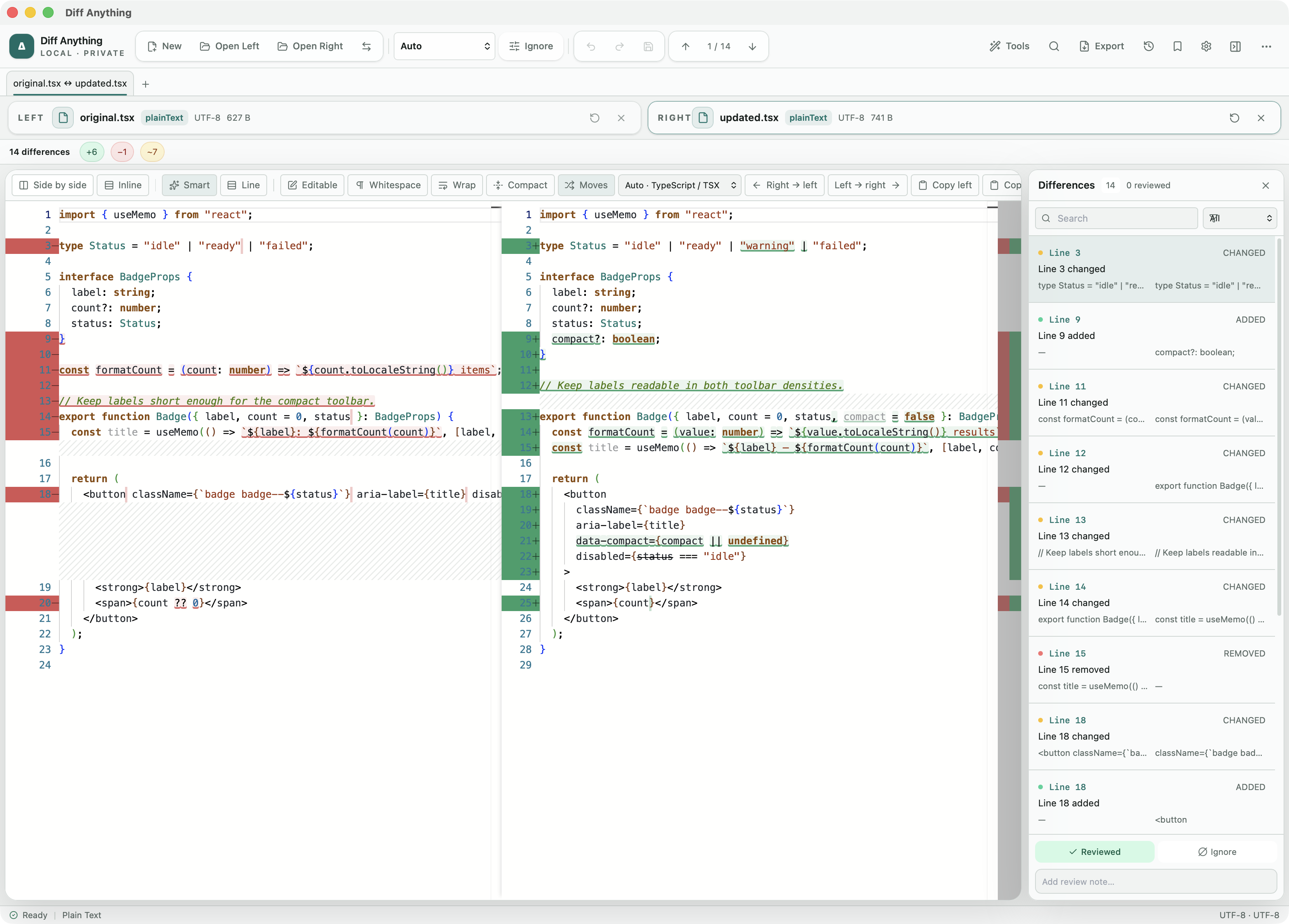
For source code, Diff Anything detects the language from an explicit override, recognized filename or extension, content markers, and shebangs. Pasted or extensionless code can still receive highlighting when the content provides a conservative signal.
Smart Diff aligns language-aware tokens and can suppress safe layout-only edits while preserving indentation-sensitive blocks, statement newlines, strings, comments, and exact token changes. It is available for all 117 non-plain-text editor languages. Line Diff remains beside it for conventional, lossless line-by-line review, editing, and apply operations; neither view claims an abstract-syntax-tree comparison.
- Switch views without reloading either source.
- Override the detected language when a file is intentionally unusual.
- Use moved-block detection and compact context to follow structural edits.
- Keep wrapping enabled when generated code or data contains long lines.
Resolve a three-way merge
For text sources with a shared starting point, open the Pro merge workspace and choose the common Base while the current left and right sources become Ours and Theirs. The workspace compares each side against Base and can focus the source views on changed lines.
Independent line changes combine automatically, as do edits to separate words of the same line, with at least one unchanged word between them. Any other same-line change is a conflict, so the merge never invents a value from parts of both sides. For competing edits, navigate each conflict and choose Ours, Theirs, Ours then Theirs, Theirs then Ours, or Base; bulk side choices and Reset make larger reviews reversible. The merged result remains editable and cannot be used while unresolved conflict markers remain.
JSON, YAML, TOML, and INI files are merged by their data: values only one side changed merge wherever they are, conflicts appear only at values both sides changed differently, and your side's comments and formatting are kept; Merge by data switches to the line merge. A file that already contains conflict markers shows how many conflicts it has, and Resolve opens exactly those conflicts in the workspace, keeping every line outside them as the version control system merged it.
- Confirm that Base is the true common ancestor.
- Review automatically combined edits as well as explicit conflicts.
- Resolve every remaining marker before using the merged result.
Recover from input problems
Parser errors include concise context and technical detail; JSON failures include line and column. Some engines can return partial results with warnings, while unreadable sources never become valid active inputs.
Fix the source or choose the correct explicit mode rather than weakening the comparison until malformed data appears valid.
Free & Pro: what’s included
Available on the Mac App Store and Microsoft Store. Free desktop use lets you try every comparison engine for files up to 5 MiB per side and 10 new comparison sessions per local day; collection previews show the first 100 items, binary comparisons the first 100 byte differences, and PDF previews the first 3 pages. Plain text, JSON, and Jupyter notebook comparison are complete, and opening files from Finder or File Explorer, diffanything:// links, and AppleScript are free. The free CLI supports text, JSON, and notebooks, and the command-line helper that brings the CLI to the Mac App Store version is a free download that uses the Pro purchase made in the app. A one-time Pro purchase removes the preview and session limits and unlocks larger sources within technical limits, saved profiles and history, saving folder snapshots, report export and printing, JSON Patch export, applying patches, three-way merge and conflict resolution, the Git merge driver and merge tool, folder synchronization, batch manifests, every CLI mode, and, on Windows, trusted preprocessors.