Capability overview
How can I use localization built in in Screen Studio Kit?
With Pro, add languages from a searchable list, rename or remove them, choose the source language, edit translated copy in one table, assign language-specific inner and outer display images, and validate the complete release before batch export.
Build a screenshot gallery that shows buyers what your app does. Place screenshots in device frames, write clear headlines, and adjust the composition for each output size. Version 1.6 adds the iPhone Duo inner and outer display sizes plus a foldable frame with Flat, Open book, Half open and Closed poses.
Languages
Add the languages your listing supports
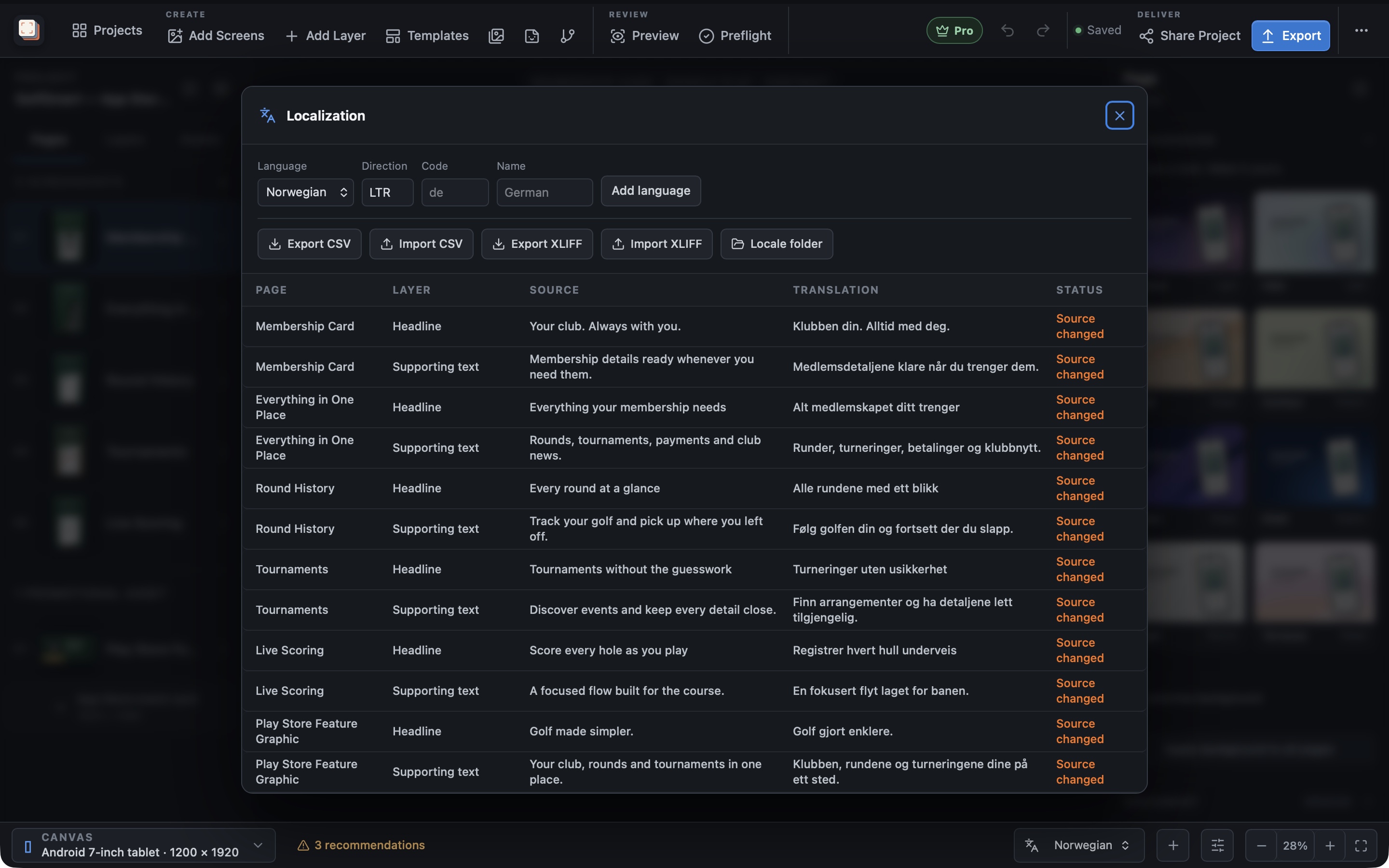
With Pro, add languages from a searchable list of store locales or choose Other language. Project settings can rename or remove a language and change the source language. The translation table lists every text layer with its page, layer name, source text, translation and a status of Complete, Missing or Source changed; edit translations directly in the table or open the layer on the canvas.
Source changed appears when the original wording was edited after the translation was entered, so you know which translations to check again. Language codes for right-to-left scripts, such as Arabic, Hebrew, Persian and Urdu, are detected automatically: left and right alignment is mirrored, and both the canvas and the export lay the text out right to left.
Translation files
Exchange copy with translators
Export CSV writes one row per text layer and language, with language, page, layer ID, layer name, source text and translated text columns. Import CSV reads the file back. Export XLIFF and Import XLIFF do the same for the selected language, for translators who work in a translation tool.
Rows are matched by layer ID, not by row order or layer name, so renaming a layer during a handoff is safe. A layer that was deleted and recreated, for example by applying a template, gets a new ID and will not match. Importing a file with a new language code adds that language to the project. Translations are stored per page and layer, so reordering pages later does not disturb them.
Localized captures
Show the interface in the same language as the headline
Screenshot, device frame and image layers have a Default asset and, when another language is selected, a separate asset for that language; Use default asset falls back to the main image. Foldable frames add the same per-language choice for the outer display. Locale folder in the Localization panel imports a folder of translated captures in one pass and assigns them to pages, languages and sizes by file name, locale folder and pixel dimensions.
Review outputs has a Language selector and, once a project has more than one language, Compare languages for checking translations side by side at the same size. Preflight reports missing and stale translations, text that overflows at a size in a given language, and layers with no image for a language.
Free and Pro
What requires Pro
Adding languages, CSV and XLIFF exchange, Locale folder import and multi-language export are Pro features. Free projects work in their default language, and each Free export contains one language.
Stress-test text in the Copy lab, which opens from Copy ideas in the text inspector, works without Pro. It adds a Pseudo (layout test) language with accented, lengthened versions of every text layer, which shows where longer translations will break the layout before the real ones arrive. The translated wording itself comes from you or your translator; the project stores it and checks it against the layout.
In the workflow
How to use it
Stress-test the layout
Use Stress-test text in the Copy lab to find text boxes that are too tight before translation starts.
Add languages and export copy
Add each release language with Pro, then send Export CSV or Export XLIFF to your translator.
Import copy and captures
Import the translated file, then add language-specific captures with Locale folder or per-layer assets.
Compare, check and batch-export
Use Compare languages and Preflight, then export all selected languages and sizes together with Pro.
Useful in practice
When to use it
Related manual
Responsive layouts and localization
Adapt one screenshot system across aspect ratios and languages without turning every output into an unrelated page.
Read the guideDirect answers
Questions about localization built in.
Which translation file formats are supported?
CSV and XLIFF. CSV covers all languages in one file; XLIFF is exported and imported for one language at a time.
Are right-to-left languages supported?
Yes. Codes such as ar, he, fa and ur are treated as right-to-left. Text alignment is mirrored and the text is laid out right to left in the editor and the export.
Can each language use its own app capture?
Yes. Screenshot, device frame and image layers can have a separate asset per language, and Locale folder can assign a whole folder of localized captures.
Can I check a layout for long translations in Free?
Yes. Stress-test text in the Copy lab adds a pseudo-localized language for layout testing. Adding real languages and exporting several at once require Pro.