Problem solved by Diff Anything macOSWindows

Moving from Guiffy to Diff Anything: a practical migration guide

Guiffy reaches end of life on 31 December 2026. See how its diff, merge, folder, and Git workflows map to Diff Anything on Windows and Mac, with Git setup you can copy.

See it in the app

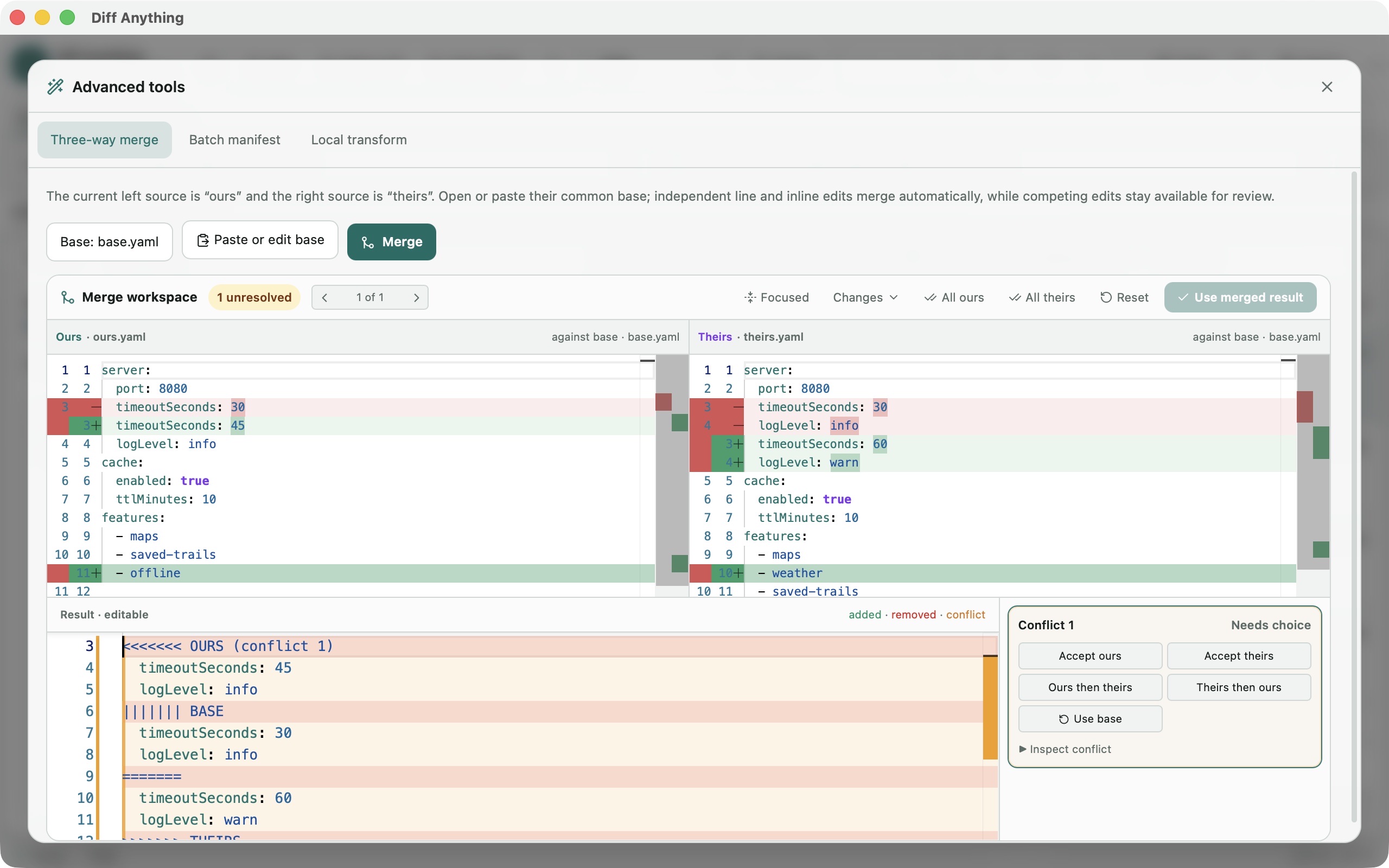
Merge text with Base, Ours, and Theirs side by side.

No accounts, cloud comparison service, analytics, or telemetry.

Diff Anything three-way merge workspace showing Ours and Theirs against Base with an unresolved conflict
Diff AnythingWith Pro, the three-way merge workspace shows each side against Base and an editable merged result. Screenshot shows the shared desktop interface.

The problem

Why the usual workflow gets in the way.

Guiffy Software has announced that it will close at the end of 2026 and that every Guiffy product reaches end of life on 31 December 2026. If you compare files, merge changes, or run Guiffy from Git or scripts, you need a replacement for those jobs before that date.

The solution

How Diff Anything handles it.

Diff Anything compares files, folders, images, and binary files on Windows and Mac, and adds comparisons for spreadsheets, PDFs, Office documents, archives, and structured data such as JSON and XML. Pro adds a three-way merge workspace that also resolves files with conflict markers, folder synchronization, and report export. From Git, it works as a difftool and diff driver, and with Pro as a merge driver and as the merge tool git mergetool opens: the Microsoft Store version on Windows directly, and the Mac App Store version through the free command-line helper.

Command line and Git

Read the full CLI and Git guide

Every command-line option, output format, exit status, and batch manifest field, plus the Git difftool, diff driver, merge driver, and merge tool setup on Windows and, with the command-line helper, on a Mac.

Read the CLI and Git guide

01 / Workflow detail

Guiffy reaches end of life on 31 December 2026

On 2 January 2026, Guiffy Software announced on its website that the company will close at the end of 2026 and that all Guiffy products reach end of life on 31 December 2026. The announcement is linked under Primary sources below.

This guide takes the jobs people use Guiffy for, such as comparing files and folders, merging, reports, the command line, and Git, and shows where each one goes in Diff Anything. Where Diff Anything works differently or does not cover a job, the table says so.

02 / Workflow detail

Guiffy workflows and where they go in Diff Anything

The first column follows the feature names on Guiffy's features page. The second column describes the released version of Diff Anything.

Guiffy features and the matching Diff Anything workflow
Guiffy featureIn Diff Anything
Diff toolOpen the original file on the left and the changed file on the right. Text and code are shown side by side or inline with word-level changes, syntax highlighting for 117 editor languages, editing, and applying changes in either direction. Smart Diff follows changes through reformatting; Line Diff gives the exact line-by-line view.
3-way Merge tool and SureMergeWith Pro, the three-way merge workspace takes Ours on the left, Theirs on the right, and the Base you choose. Changes that do not overlap combine automatically, and each overlapping edit becomes a conflict you resolve with Ours, Theirs, both, or Base in an editable result. JSON, YAML, TOML, and INI files merge by their data, value by value. A file that already contains conflict markers opens in the same workspace with Resolve, and git mergetool opens each conflicted file in Diff Anything's merge window, on a Mac through the free command-line helper.
Folder compare and synchronizationCompare two folders in tree or table layouts with search, status filters, ignore patterns, and moved-file detection, then open any changed pair. With Pro, copy entries between the two sides or synchronize the folders from a plan you review first, with undo.
Image Diff ToolCompare PNG, JPEG, GIF, WebP, BMP, TIFF, Photoshop (PSD), SVG, HEIC, AVIF, camera RAW, and other images pixel by pixel with side-by-side, overlay, swipe, blink, heatmap, and changed-pixel views, a threshold, and measurements. Draw ignore regions over areas that always change, move one image by an offset, and compare both images' metadata side by side. On Windows, HEIC, AVIF, and RAW need the matching image extensions from the Microsoft Store.
Binary Diff ToolBinary mode compares any two files byte by byte in a hex view: offsets, hex values, and printable characters side by side, aligned across inserted and deleted bytes, with Go to offset and a data inspector. The free plan lists the first 100 byte differences.
Ignore optionsText comparison can ignore whitespace, blank lines, letter case, and line endings, text or whole lines that match a regular expression, comments, and ranges of character columns, with presets for timestamps, UUIDs, and IDs. JSON, YAML, TOML, and INI can ignore chosen paths and array order, CSV comparison can ignore chosen columns, and folder comparison takes ignore patterns and .gitignore rules.
Manual AlignmentLines are aligned automatically. Align these lines (Command-J on a Mac, Control-J on Windows) pairs a left and a right line by hand, and the text before and after them is compared separately.
Over 150 File Encoding formats and Save files Encoded AsText files are read in a detected encoding: UTF-8, UTF-16, UTF-32, or a legacy encoding such as Windows-1252. Reopen with encoding reads a file again in any of 45 encodings, including the EBCDIC code pages IBM037, IBM500, IBM1047, and IBM1140, and Save with encoding saves it in another encoding, with or without a byte-order mark and with LF, CRLF, or CR line endings.
Save Compare Report (HTML) and Save Differences AsWith Pro, export a comparison as an HTML report that shows the two files side by side, a folder report with each changed text file embedded, a JSON or Markdown report, a unified diff or folder patch, a JSON Patch, or a CSV list of changes for a CSV comparison, or print the report from your browser.
Command line utilities (Jiff, Suremerge, GuiffyReport, UPatch)The Microsoft Store version on Windows provides the diff-anything command, and on a Mac the free command-line helper adds it to the Mac App Store version. With --cli it compares two files or folders and prints a highlighted diff, a summary, or JSON, with an optional exit code when differences are found; with Pro, --merge merges three files, --report writes a report, and --apply-patch applies a unified diff. The free command line compares text, JSON, and notebooks; Pro adds the other comparison types and batch runs with JUnit or SARIF output. The Mac App Store app itself is limited to files and folders you choose in it, which is why the Mac uses the helper.
CM/SCM IntegrationsDiff Anything works as git difftool, as the diff driver for the file types you choose, and, with Pro, as a merge driver and as the merge tool git mergetool opens in a window: on Windows with the Microsoft Store version, and on a Mac with the free command-line helper. The same diff command and merge tool work with Mercurial, Subversion, Perforce, and TFVC (Team Foundation Server and Azure DevOps Server), and diff-anything --cli --integration-help prints the settings. There is no ready-made setup for AccuRev, ClearCase, CMSynergy, or StarTeam, and no Eclipse or NetBeans integration.
Desktop Integrations with Windows Explorer and FinderOn Windows, the Microsoft Store version adds Compare with Diff Anything to the File Explorer context menu. On a Mac, Compare with Diff Anything appears under Quick Actions or Services in Finder, and Open With and the Dock icon take files too. Two selected items are compared at once; one waits for the other side. diffanything:// links, and AppleScript on a Mac, open comparisons from other apps.
TranslationsThe interface is in English, German, and French, following the system's language or the one chosen in Settings.
User defined keyboard shortcutsEvery command in the command palette can have its own keyboard shortcut: record, remove, or reset one in Settings.
BIG files > 2GBText comparison opens files up to 20 MB by default and up to 100 MB after you raise Maximum automatic text size in Settings; larger text files cannot be compared as text. Archive comparison streams large archives and is not bound by that setting, and the hex view of a binary comparison scrolls to any row of multi-gigabyte files. The free plan compares files up to 5 MiB per side.
Filter PluginsWith Pro on Windows, Local transform runs a program installed on your computer, such as jq or xmllint, on both text sources before they are compared.
Cross PlatformWindows 10 version 1809 or later, Windows 11, and macOS 13 Ventura or later, from the Microsoft Store and the Mac App Store. There is no Linux, Unix, or Java version.

03 / Workflow detail

Use Diff Anything with Git on Windows and Mac

Git integration uses the diff-anything command. On Windows, the Microsoft Store version provides it. On a Mac, install the free command-line helper first: the Mac App Store version runs in Apple's App Sandbox and cannot read the files Git names, so the helper, a notarized download from this site, installs diff-anything in /usr/local/bin and runs the same settings. Run these commands in a terminal. Each one replaces the matching Git setting, so a diff.tool or merge.tool that pointed at Guiffy now points at Diff Anything. Running diff-anything --cli --integration-help prints the same configuration.

As a difftool, git difftool prints each changed file as a highlighted diff in the terminal. As a diff driver, git diff uses Diff Anything for the file types you assign in .gitattributes or your global attributes file; git log -p and git show use it when you add --ext-diff. Leave --exit-code out of a diff driver command, because Git stops at the first changed file when a driver reports differences through its exit status.

On the free plan, the difftool and diff driver compare text and JSON files up to 5 MiB, with 10 new comparisons a day. When git diff reaches a file the free plan does not cover, the diff driver lists it as not compared and goes on to the next file.

With Pro, the merge driver merges the files you assign to it whenever Git merges. Changes that do not overlap are combined, and JSON, YAML, TOML, and INI files are merged by their data, so conflict markers surround only the values both sides changed differently. --name %P tells the driver the file's own name, which decides its format.

With Pro, git mergetool opens each conflicted file in Diff Anything's merge window, with the base, local, and remote versions and the conflicts Git left. Save & Close writes the merged file and tells Git it is resolved; Cancel leaves it as Git wrote it. On a Mac, the helper reads the files and opens the merge in a window of the app. A file that already contains conflict markers can also be opened in the app and resolved with Resolve.

Use Diff Anything as git difftool
git config --global diff.tool diff-anything
git config --global difftool.diff-anything.cmd 'diff-anything --cli --format terminal --color auto "$LOCAL" "$REMOTE"'
Use Diff Anything as the diff driver for git diff
git config --global diff.diff-anything.command 'diff-anything --cli --format terminal --color auto'
Assign the diff driver in .gitattributes
*.json diff=diff-anything
*.yaml diff=diff-anything
Merge driver and git mergetool (Pro)
git config --global merge.diff-anything.driver 'diff-anything --cli --merge %O %A %B --output %A --name %P'
git config --global merge.tool diff-anything
git config --global mergetool.diff-anything.cmd 'diff-anything --merge-tool "$BASE" "$LOCAL" "$REMOTE" "$MERGED"'
git config --global mergetool.diff-anything.trustExitCode true
Assign the diff and merge drivers in .gitattributes
*.json diff=diff-anything merge=diff-anything
*.yaml diff=diff-anything merge=diff-anything
*.toml merge=diff-anything

04 / Workflow detail

What about your existing Guiffy setups?

Diff Anything installs alongside Guiffy, so you can move one workflow at a time and check the results before you switch. Diff Anything does not import Guiffy settings, so each setup is recreated once:

  • Git settings: run the commands above, on a Mac after installing the command-line helper. To find any other Git settings that still name Guiffy, run git config --global --list and look for guiffy.
  • Scripts that call Guiffy's command-line utilities: rewrite them with diff-anything --cli, which runs on Windows and, with the command-line helper, on a Mac. Exit status 0 means no counted differences, 1 means differences were found or a merge left conflicts, and 2 means an error such as an unreadable file. Add --exit-code when a script should fail on any difference.
  • Compare reports: with Pro, export side-by-side HTML, JSON, or Markdown reports or print them from the app, or write reports and JSON, JUnit, or SARIF results from the command line.
  • Ignore settings: set the matching ignore options in the app, including regular-expression and column rules. With Pro, a saved profile keeps them for the next comparison of the same files.
  • Explorer or Finder menu commands: use Compare with Diff Anything in the File Explorer context menu on Windows, or under Quick Actions or Services in Finder on a Mac.

05 / Workflow detail

What you can compare beyond text and folders

Diff Anything picks the comparison that fits the files you open, so a Guiffy workflow often gets a clearer result:

  • Spreadsheets: compare Excel, OpenDocument, and Apple Numbers workbooks row by row, or check a CSV export against the sheet it came from.
  • Notebooks and databases: compare Jupyter notebooks cell by cell and SQLite databases by schema and rows.
  • Structured data: JSON, YAML, TOML, INI, property lists, and XML are compared by meaning, so reordered keys do not show up as changes and list items are matched by id.
  • Documents: compare PDFs as rendered pages or extracted text, Word, PowerPoint, OpenDocument, and RTF files by their text, and Word and OpenDocument text by their formatting too.
  • Archives: compare ZIP, 7z, RAR, and TAR files by their contents instead of their packaging.
  • Privacy: every comparison runs on your computer. There is no account, no upload, and no AI.

06 / Workflow detail

What you can do in Free and Pro

Free lets you try every comparison type with files up to 5 MiB per side and 10 new comparison sessions per local day. Folder and archive previews show the first 100 items, and PDF previews show the first 3 pages. The free command line compares text, JSON, and notebooks, on Windows and through the free command-line helper on a Mac.

Pro is a one-time purchase in the Microsoft Store or the Mac App Store, priced in your local store currency, with no subscription, account, or licence key. It removes those limits and adds three-way merge and conflict resolution, the Git merge driver and merge tool, folder synchronization, report export and printing, saved profiles and history, batch runs, and every command-line comparison type. On a Mac, the command-line helper uses the Pro purchase made in the app on the same Mac.

Clear answers

Questions about moving from Guiffy

When does Guiffy reach end of life?

Guiffy Software announced on 2 January 2026 that the company closes at the end of 2026 and that all Guiffy products reach end of life on 31 December 2026.

Can I use Diff Anything as my Git merge tool?

Yes, with Pro. git mergetool opens each conflicted file in Diff Anything's merge window, where you resolve the conflicts side by side and choose Save & Close. The merge driver merges without a window whenever Git merges, and JSON, YAML, TOML, and INI files are merged by their data. On Windows, the Microsoft Store version is the merge tool. On a Mac, install the free command-line helper: the Mac App Store version cannot be started by Git on its own, so the helper reads the files and opens the merge in a window of the app.

Does Diff Anything run on Linux or Unix?

No. Diff Anything runs on Windows 10 version 1809 or later, Windows 11, and macOS 13 Ventura or later.

Does Diff Anything work with Perforce, SVN, or ClearCase?

The diff command and merge tool work with Perforce, Subversion, Mercurial, and TFVC as well as Git, on Windows and, through the command-line helper, on a Mac, and diff-anything --cli --integration-help prints the settings for each. There is no ready-made setup for ClearCase, AccuRev, CMSynergy, or StarTeam.

Can Diff Anything import my Guiffy settings?

No. Set the matching ignore options in Diff Anything once; with Pro, a saved profile keeps them.

Is Diff Anything free?

Diff Anything has a free version that lets you try every comparison type, with files up to 5 MiB per side and 10 new comparison sessions per local day. A one-time Pro purchase removes those limits.

Does Diff Anything upload my files?

No. Comparisons run locally in the desktop app. There is no account, cloud comparison service, analytics, or telemetry.

Three short steps

Move one Guiffy workflow this week.

  1. 01

    Install Diff Anything from the Microsoft Store or the Mac App Store. It installs alongside Guiffy.

  2. 02

    Open a pair of files or folders you last compared in Guiffy, with the original on the left and the changed version on the right.

  3. 03

    Run the Git commands from this guide (on a Mac, after installing the free command-line helper), then check the result with git difftool on a branch you know.

Available for macOS and Windows

Solve it with Diff Anything.