If red and green highlights are hard to tell apart, reviewing a diff means checking each line twice: was this added or removed?
Diff Anything is a colorblind-friendly diff tool for Mac and Windows with a free Blue and yellow setting. Introduced in version 1.6, it marks additions in blue and removals in yellow. You can also read differences in words, with their locations and original and updated values.
Use it to review a code change, check a configuration file, or compare two versions of a document. Your files stay on your computer, with no AI involved.
The color setting is included in the free plan. See the free comparison limits below.
Watch the tutorial
Watch the Short
How to change diff colors from red and green to blue and yellow
- Open Settings in Diff Anything.
- Under Appearance, find Difference colors.
- Choose Blue and yellow, then click Save Settings.
Your choice is saved and works in both light and dark themes.
| Change | Blue and yellow setting |
|---|---|
| Added content | Blue |
| Removed content | Yellow |
| Changed content | Neutral gray |
The palette applies to the side-by-side and inline code views, structured trees, tables, folders, and documents. It also applies to three-way merge with Pro. In JSON and XML trees, value text becomes neutral so syntax colors do not compete with the change highlights.
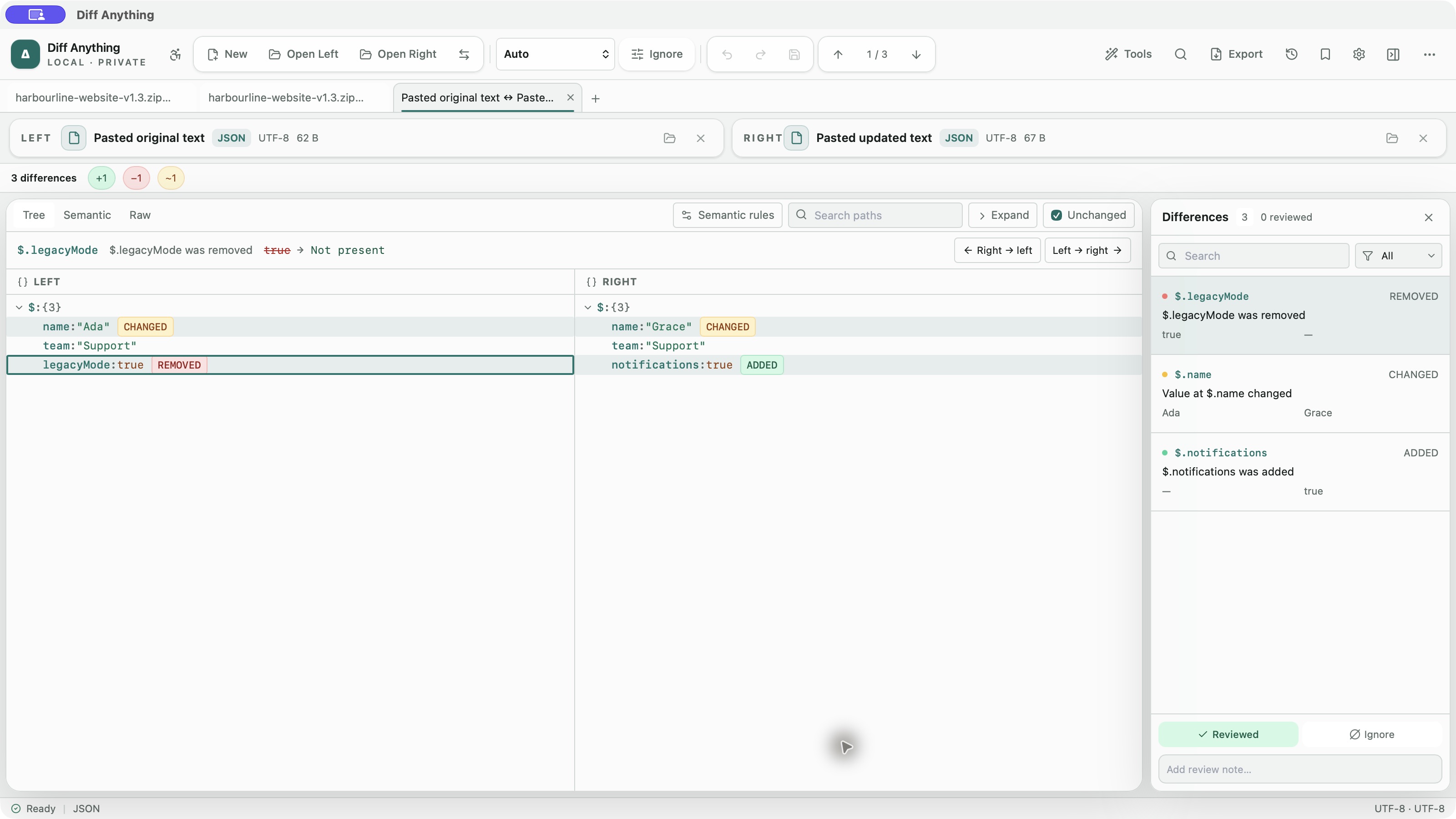
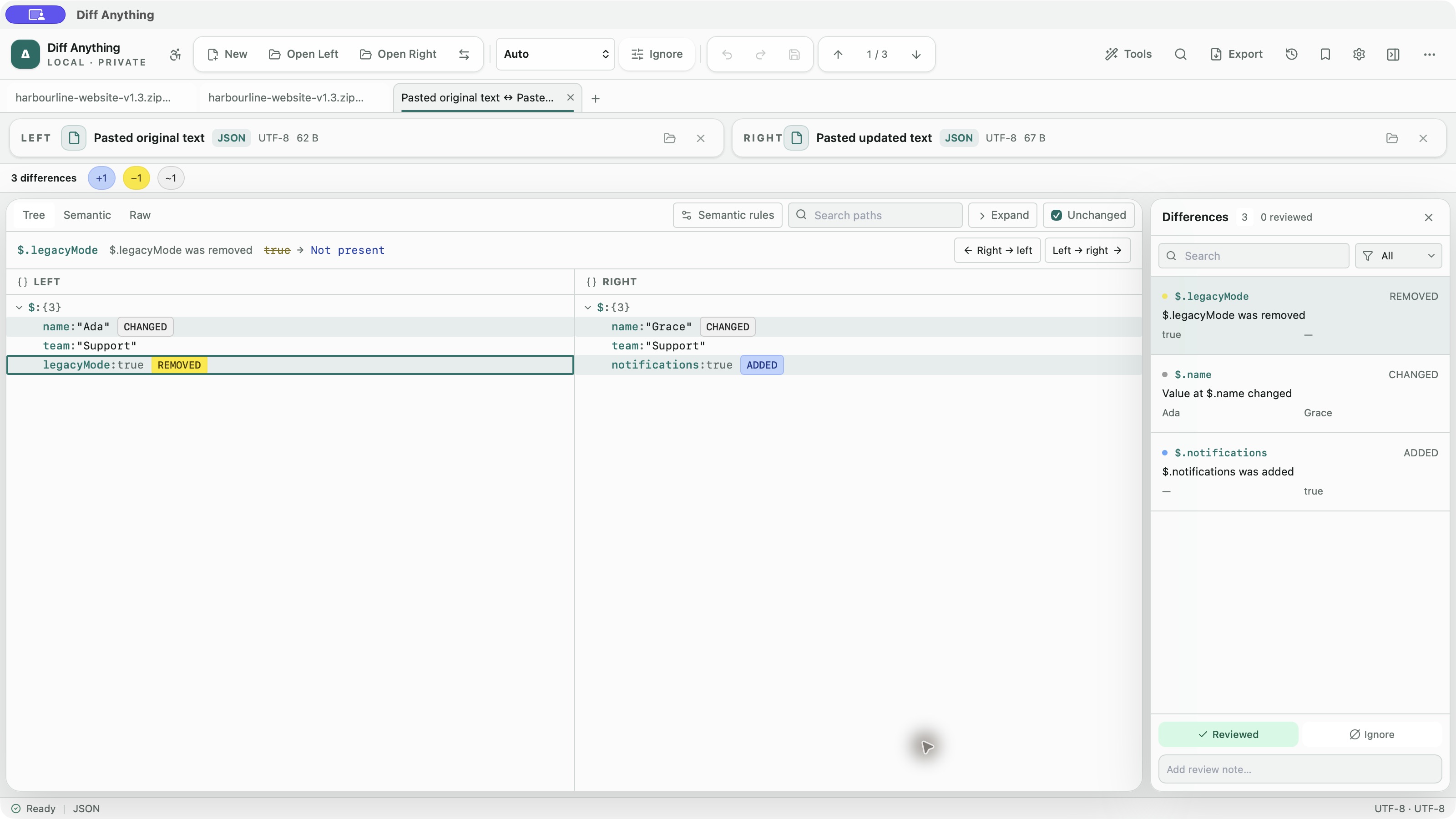
Before and after: the same JSON comparison in both palettes
In this example, legacyMode: true was removed, notifications: true was added, and name changed from Ada to Grace. The files and results are the same in both screenshots; only the color setting changes.
Read changes in words as well as colors
A different palette gives you another way to scan the result. A written description lets you check the meaning of a change directly.
Open the accessible workspace with Command-Shift-A on a Mac or Control-Shift-A on Windows. It brings the sources, comparison summary, and difference navigation into one ordered workspace.
A JSON field changed from Ada to Grace is described as:
name: changed from Ada to Grace
You can step between differences, read their locations and values, mark them reviewed, and add notes using the keyboard. Apply actions are available for supported editable comparisons.
That is useful when you want to check an exact value before accepting a change, or prefer reading a description to interpreting a highlight. See how the accessible workspace works.
Compare code, spreadsheets, documents, and folders in one app
The same color preference carries across several kinds of file review:
- Code and configuration: review text changes or inspect JSON and YAML differences by path.
- Spreadsheets: compare workbook values cell by cell and find a change by its cell address. Explore spreadsheet comparison.
- Documents: review text differences between PDF or Word files. Explore PDF comparison.
- Folders and archives: find added, removed, and changed entries before a handoff or backup check. Explore folder comparison.
All comparisons run locally on your Mac or Windows PC. You can review private code, business documents, and client files without uploading them to a comparison service.
Questions about colorblind-friendly diff colors
Do I need Pro to change the diff colors?
No. Settings → Difference colors → Blue and yellow is included in the free plan on both Mac and Windows.
Free desktop use lets you try every comparison engine with files up to 5 MB per side, 10 new comparison sessions a day, the first 100 collection items, and the first 3 PDF page previews. Pro is a one-time purchase for complete results, larger local files, and unlimited sessions and collection items.
Larger archives, PDFs, and CSV files have capped free previews. The color setting itself does not require Pro.
Does the palette work in dark mode?
Yes. Blue and yellow is available in both light and dark themes, and the app remembers your choice.
Is blue and yellow suitable for every type of color blindness?
The palette is intended for red-green color blindness; it is not a guarantee for every person's vision. Try it with a familiar pair of files and use the written difference descriptions to check the result. W3C's guidance on using color explains why meaning should also be available through cues such as text.
Does it change image heatmaps or the merge workspace?
Image heatmaps keep their own colors. Three-way merge uses the selected palette and requires Pro; it is separate from the accessible workspace.
Try blue and yellow on your next file comparison
Download Diff Anything, open two versions of a file you know, and choose Blue and yellow in Settings. Check the highlights, then read a difference in words. You can try the color setting before deciding whether you need Pro.
For the other changes in this release, read what's new in Diff Anything 1.6.